§4 · Using the module
Accounting reports and financial statements
For accountants and management. The Accounting reports section groups the inquiry reports (general ledger, trial balance, accounting journals, draft entries) and the financial statements (balance sheet, income statement, TAFIRE, notes). Custom reports are covered in chapter 5.
Related screens
Trial balance
route · accounting.reports.workspace-fragment · balance
Income statement
route · accounting.reports.workspace-fragment · compte-resultat
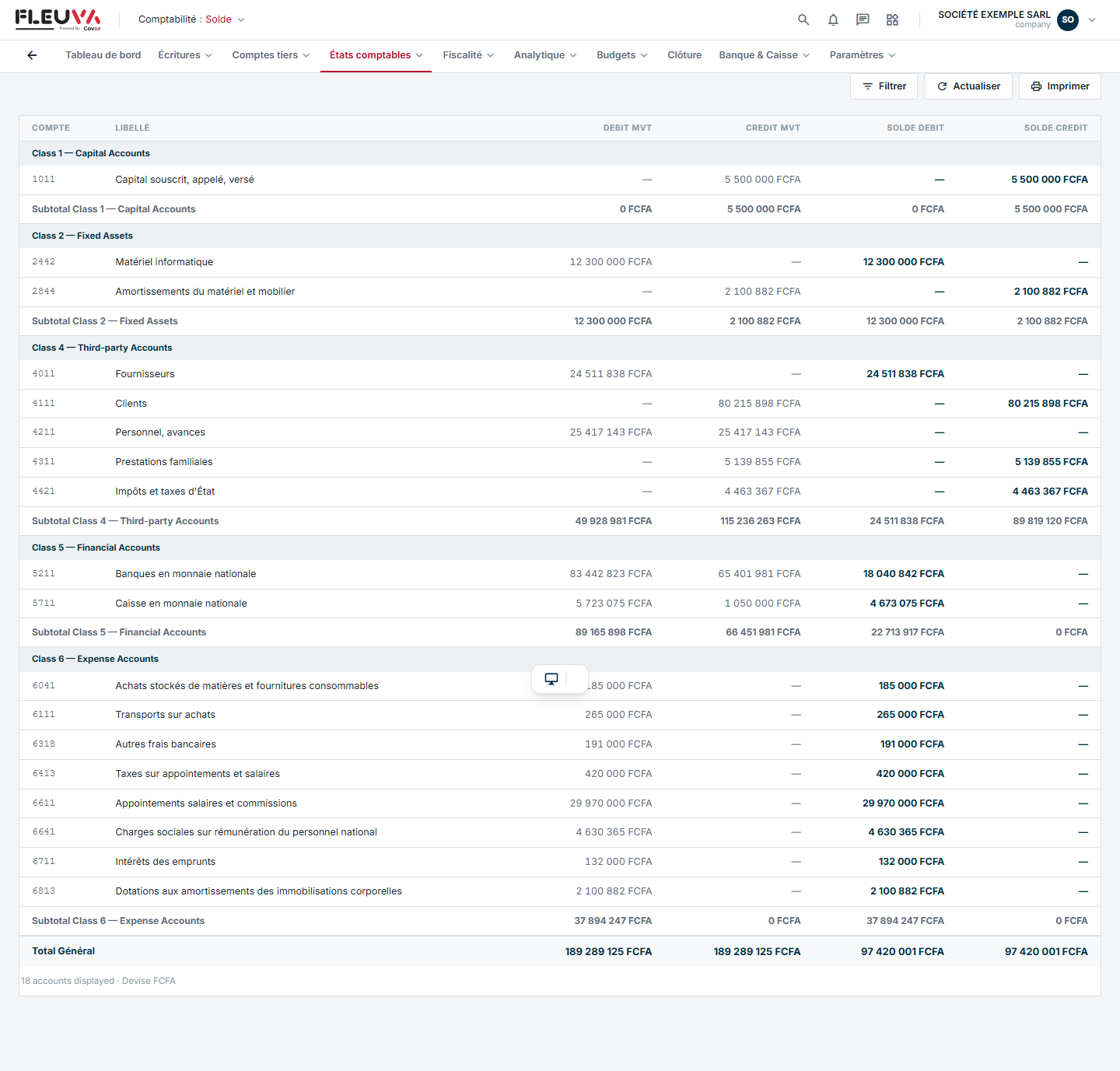 Accounting statements › Trial balance
Accounting reports › Sales analysis shows sales by item and by customer over the period.
General principles
Where to find the reports
The reports are in the Accounting reports menu, in four groups:
Inquiry: General ledger, Trial balance, Accounting journals, Draft entries (brouillard).
Financial statements: Balance sheet, Income statement, TAFIRE, Notes to the financial statements.
Custom reports: see chapter 5.
Additional analysis: Sales analysis.
Third-party reports (aged balances, third-party ledger) are in the Third-party accounts menu (see chapter 3); analytical reports, in the Analytics menu.
Each report first opens on screen, with its filters and interactive details; printing or exporting is then started from that screen.
Workspace mode and quick search
If the Workspace module is enabled for your company, you can open several reports at the same time in independent windows that can be resized and moved — useful for example to compare an account's general ledger with the trial balance. The Ctrl+K shortcut (or Cmd+K on Mac) opens the Fleuva search centre: type the name of the report you want ("Bilan", "Grand Livre", "TAFIRE"…) to open it directly in a new window, without leaving what you are doing.
Preview, Print, Export: what you will actually see
Depending on the report, two output mechanisms exist:
The quick print window (on the journal, general ledger, trial balance, balance sheet and income statement): the Print button opens a small window offering three destinations — Screen / browser print (a preview you can print from your browser), PDF (a formatted document ready to archive or send) and File (text/CSV) (a flat file for a spreadsheet). You confirm with OK / Print. The export automatically uses the filters active on screen (journal, account, dates…).
The Print Space (a guided, multi-step workflow, used notably for the TAFIRE): the Print button first opens a Filters step, where you choose the business criteria and the number of fiscal years compared (number of columns), then a Destination step where you choose between Screen, Printer or File — the latter offering PDF, Excel (.xlsx), CSV or TXT. Excel and CSV files are generated in the background: a progress bar appears, then a Download button once the file is ready (PDF and TXT are immediate).
The draft entries report (brouillard) has no Print button: it is not a legal document, only a review space before validation.
Draft entries (brouillard)
Business explanation
The brouillard lists all the accounting entries still in draft, that is, entered but not yet validated. It is where the accountant reviews entries (purchase invoices, sales, expense reports, payroll…) before they become final. As long as an entry stays in the brouillard, it can be freely edited or deleted, and it does not appear in the legal journal, the final general ledger, the trial balance, the balance sheet or the income statement.
Step by step
- 1
Open Accounting reports › Draft entries (brouillard).
- 2
Filter by Journal and by period (From / To) if needed.
- 3
Each line can be edited (pencil icon, which reopens the entry) or deleted (bin icon, with confirmation).
- 4
Tick the entries to validate (all are ticked by default), then click Valider tout (validate all): the ticked entries leave the brouillard and enter your company's validation flow. Depending on your settings, they may need a further approval before appearing as "Validated" in the journal.
- 5
The top banner always shows the number of pending entries and the debit/credit total of the displayed draft.
The journal
Business explanation
The journal records, in chronological order, all the finally validated entries of a given journal (Purchases, Sales, Bank, Miscellaneous operations…). It is the legal register presented during a tax inspection or an audit: it traces, day by day, everything that was posted.
Step by step
- 1
Open Accounting reports › Accounting journals.
- 2
Choose the Journal to view (required — the journal is always read for one journal at a time) and, if needed, a From / To period.
- 3
Each line shows its status: Validated or Reversed (a reversed entry is an entry cancelled by a reversal; it stays visible for traceability).
- 4
A banner flags any consistency anomaly (total debit ≠ total credit) if it occurs.
- 5
Click Print to open the output window (Screen, PDF, text file).
The general ledger
Business explanation
The general ledger shows, account by account, the chronological detail of all debit and credit movements, with the opening balance and the running balance after each entry. It is the reference report to justify a balance: to explain what makes up the balance of a cash, expense or third-party account to an auditor or a bank.
Step by step
- 1
Open Accounting reports › General ledger.
- 2
In the left panel, search for and click the account to view (search by number or name) — or use the filters: Account (one account) or Class (for example "6" to show the whole expense class), Journal, From / To.
- 3
The details show the opening balance, each movement, and the running balance (with D for debit or C for credit).
- 4
Drill-down: click the document reference to open the corresponding source entry (in Workspace mode, it opens in a new window without closing the general ledger).
- 5
Print or export from the Print button (the export uses the account/class, journal and dates currently filtered).
infoThe general ledger is limited to the fiscal year viewed. To compare an account over several fiscal years (N/N-1/N-2/N-3), see the matching point in the FAQ.
The trial balance
Business explanation
The trial balance summarises, for each account of the chart, the total debit and credit movements of the period and the balance (debit or credit), grouped by account class (1 to 8). It is the fundamental control of double entry: total debits must equal total credits, and total debit balances must equal total credit balances.
Step by step
- 1
Open Accounting reports › Trial balance.
- 2
Filter by account class, Journal and period (From / To).
- 3
Use the on-screen search (number or name) and the box that hides settled accounts to keep only accounts actually used.
- 4
Accounts are grouped by class, with a subtotal per class and a grand total at the bottom.
- 5
A red banner immediately flags any anomaly (total debit ≠ total credit).
- 6
Print or export from the Print button.
infoTo find the detail of an account on the trial balance, note its number and open it in the general ledger (or, in Workspace mode, open a second general ledger window next to the trial balance).
The balance sheet
Business explanation
The balance sheet shows the company's financial position at a given date:
Assets: what the company owns (fixed assets, inventory, receivables, cash).
Liabilities and equity: the resources that finance those assets (equity, result for the year, financial debts, operating debts).
The balance sheet must always balance: Total net assets = Total liabilities and equity.
Step by step
- 1
Open Accounting reports › Balance sheet. The balance sheet shown is that of the active fiscal year; a selector at the top of the screen lets you choose another fiscal year (open or closed).
- 2
Assets are grouped by main headings (fixed assets, current assets, cash) and liabilities likewise (equity, financial debts, operating debts), with a subtotal per heading.
- 3
Three summary indicators are shown at the top: total assets, total liabilities, and any difference between them.
- 4
Click Print for the Screen preview, the PDF or the text file.
Layout options (columns)
Fleuva's financial statements engine can produce the balance sheet in three layouts:
| Layout | Description | Recommended use |
|---|
| N / N-1 (2 columns) — statutory layout | Assets in 4 columns (Gross, Depreciation/Impairment, Net N, Net N-1), liabilities in 2 columns (N, N-1). This is the default layout, the one that matches the OHADA model. | Annual statements, legal filing, statutory auditors. |
| N / N-1 / N-2 (3 years) — Fleuva extension | Assets in 5 columns, liabilities in 3 columns. | Trend analysis over 3 years. |
| N / N-1 / N-2 / N-3 (4 years) — Fleuva extension | Assets in 6 columns, liabilities in 4 columns. | Multi-year review, management committee, medium-term analysis of the financial position. |
The N/N-1 (statutory) layout is the default for standard printing of the balance sheet; the extended layouts are available through the Print Space when it is offered for this report (see the note in the FAQ).
The income statement
Business explanation
The income statement measures the company's performance over the fiscal year: it sets revenue (sales, services, financial income, extraordinary income…) against expenses (purchases, salaries, rent, taxes, depreciation…). Unlike the balance sheet, which is a snapshot at a given date, the income statement covers a whole period.
Step by step
- 1
Open Accounting reports › Income statement.
- 2
The screen shows three summary indicators (total revenue, total expenses, net result), then the detail of the SYSCOHADA statutory headings grouped into two blocks: REVENUE and EXPENSES. A final banner highlights the net result for the year (profit or loss).
- 3
Click Print for the Screen preview, the PDF or the text file.
Layout options (columns)
As for the balance sheet, three layouts exist: N / N-1 (2 columns, default statutory layout), N / N-1 / N-2 (3 columns) and N / N-1 / N-2 / N-3 (4 columns), the last two being multi-year comparative extensions offered by Fleuva.
infoNote: at this stage, the income statement screen shows the revenue/expense headings and the net result, without the intermediate management balances (trading margin, value added, gross operating surplus…) displayed as a cascade on screen. The gross operating surplus (EBE) calculation nevertheless already exists in the calculation engine (it is the starting point of the TAFIRE, see The TAFIRE).
The TAFIRE
(Tableau Financier des Ressources et des Emplois — statement of sources and uses of funds)
Business explanation
The TAFIRE explains how the company generated its financial resources during the fiscal year and how it used them. It has three parts:
- 1
Part I — Global self-financing capacity (CAFG) and self-financing (AF): starts from the gross operating surplus (EBE), adds or subtracts the other operating, financial and extraordinary (HAO) items that are cash items, employee profit-sharing and income tax, to obtain the CAFG. Dividends paid are then deducted to obtain self-financing.
- 2
Part II — Long-term sources and uses: compares long-term sources (self-financing, disposals of fixed assets, capital increases, new loans) with long-term uses (acquisitions of fixed assets, loan repayments, capital reductions). The difference gives the change in overall net working capital (FRNG).
- 3
Part III — Summary of changes: calculates the change in working capital requirement (BFR, operating + non-operating), then checks the fundamental equation:
$$\Delta \text{Net cash (calculated)} = \Delta \text{FRNG} - \Delta \text{BFR}$$
This calculated change is compared with the change in cash actually observed between the opening and closing of the fiscal year.
Step by step
- 1
Open Accounting reports › TAFIRE.
- 2
The Print button opens the full Print Space here: a Filters step lets you choose the number of fiscal years compared (N/N-1, or N/N-1/N-2), then a Destination step lets you choose between Screen, Printer or File (PDF, Excel, CSV, TXT).
- 3
A green banner confirms that the equation $\Delta TN = \Delta FRNG - \Delta BFR$ holds for the fiscal year shown. A red banner flags a closing gap, with its exact amount.
- 4
A warning reminds you that, as long as the TAFIRE's SYSCOHADA mapping table has not been validated by an accountant, no allocation is applied by mere assumption: a human check is still required.
The 18 statutory notes
Business explanation
The notes complete and comment on the figures of the balance sheet and the income statement; they are an integral part of the annual financial statements of the SYSCOHADA normal system. Fleuva automatically extracts the available figures from the trial balance and the general ledger, but the qualitative disclosures (guarantees given, pending litigation, agreements with directors, events after the closing date…) must be entered by the accountant: the software cannot guess them.
The 18 notes
| No. | Statutory title |
|---|
| 1 | Debts secured by real guarantees |
| 2 | Gross fixed assets |
| 3 | Depreciation |
| 4 | Gains and losses on disposals of fixed assets |
| 5 | Impairment and provisions on assets |
| 6 | Provisions for risks and charges (liabilities) |
| 7 | Maturities of receivables and payables at closing |
| 8 | Equity investments and subsidiaries |
| 9 | Statement of changes in equity |
| 10 | Components of the financial result |
| 11 | Components of the extraordinary (HAO) result |
| 12 | Appropriation of the result and key figures of the last 5 years |
| 13 | Off-balance-sheet commitments and contingent liabilities |
| 14 | Headcount, payroll and staff |
| 15 | Events after the closing date |
| 16 | Related-party information |
| 17 | Joint ventures and associates |
| 18 | Accounting rules and methods |
Each note has two sections: the accounting data extracted from the general ledger / trial balance (calculated automatically) and the qualitative information and mandatory disclosures (entered manually).
Step by step
- 1
Open Accounting reports › Notes to the financial statements.
- 2
The table lists the 18 notes with two indicators per row: · Completeness: green Complète (complete) badge if all mandatory qualitative fields are filled in, otherwise orange Saisie requise (entry required) badge. · Status: Pré-remplie (pre-filled, figures just calculated), Brouillon (draft, a manual entry was saved but not yet validated), or Validée (validated, signed off by an accountant, with their name and the date).
- 3
Click Consulter (view, eye icon) to see a note's details, or Modifier / Compléter (edit / complete, pencil icon) to enter the missing qualitative disclosures, then save the changes.
- 4
The Recalculer (recalculate) button (on a note) or Recalculer tout depuis la balance (recalculate all from the trial balance, on the list) refreshes the figures without overwriting manual entries already made.
- 5
Once the mandatory fields are filled in, click Valider la note (validate the note) to add the accountant's sign-off (name + timestamp).
- 6
Print (PDF) produces a single note; print the full notes (PDF), from the list, produces the 18 notes in one document.